Quick guide
RogerDeck 1.2.0 · iPhone and Android. Sign in, join your day, talk, and know the EMERGENCY button.
If you are on the crew
Sign in, join your day, talk, and know the EMERGENCY button.
Install RogerDeck
Get the app from the link you were sent, or from the install page. You need iOS 16.4 or newer, or Android 9 or newer.
Sign in with your number
Open the app and enter the phone number your Crew Chief invited. Tap Send code, type the 6-digit code from the text message, then tap Verify. There is no password. If the app says no invitation was found for your number, ask your Crew Chief to add you. The first time, complete your profile, tap Finish, and allow the microphone and notifications when the phone asks.
Join your day
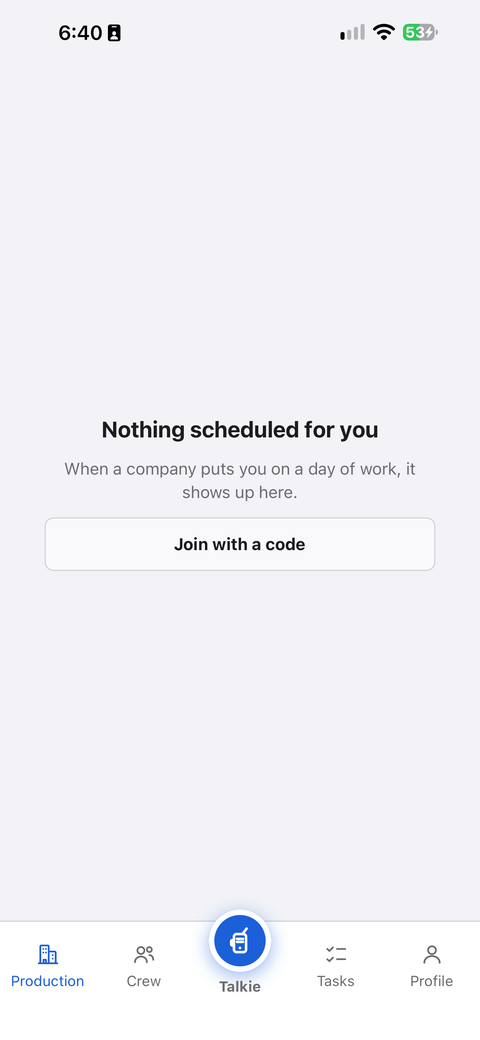
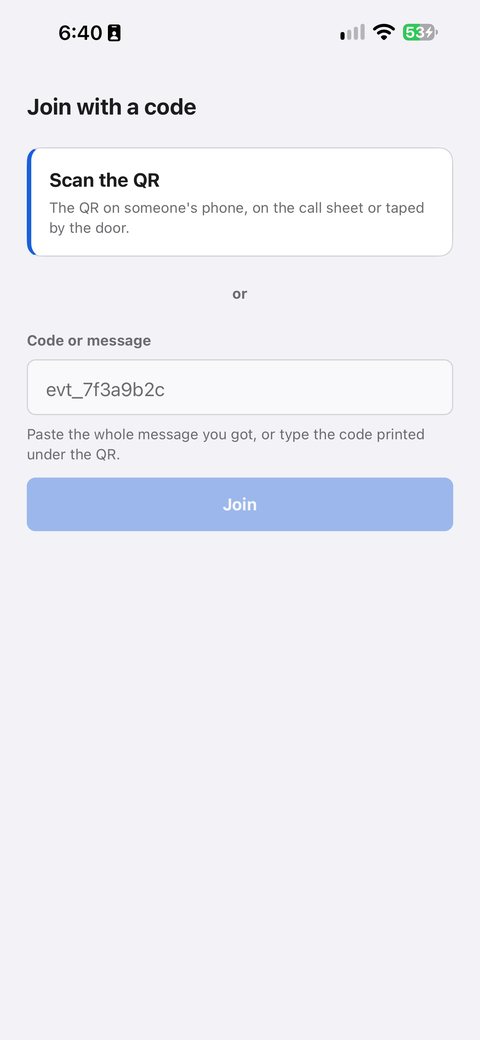
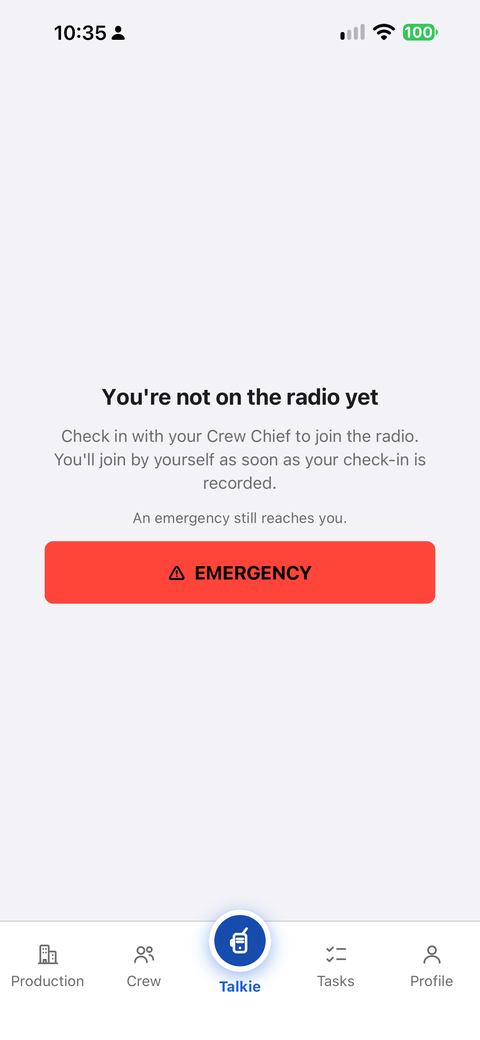
Your Crew Chief's invitation shows up in the app: tap Accept. Or, if nothing is scheduled for you yet, tap Join with a code on the Production tab (the Crew tab has it too) and scan the QR or paste the code you were given. By default, the radio opens when your Crew Chief checks you in: show the QR in Profile, or your printed badge, so they can scan it. Until then the Talkie says You're not on the radio yet.
Talk
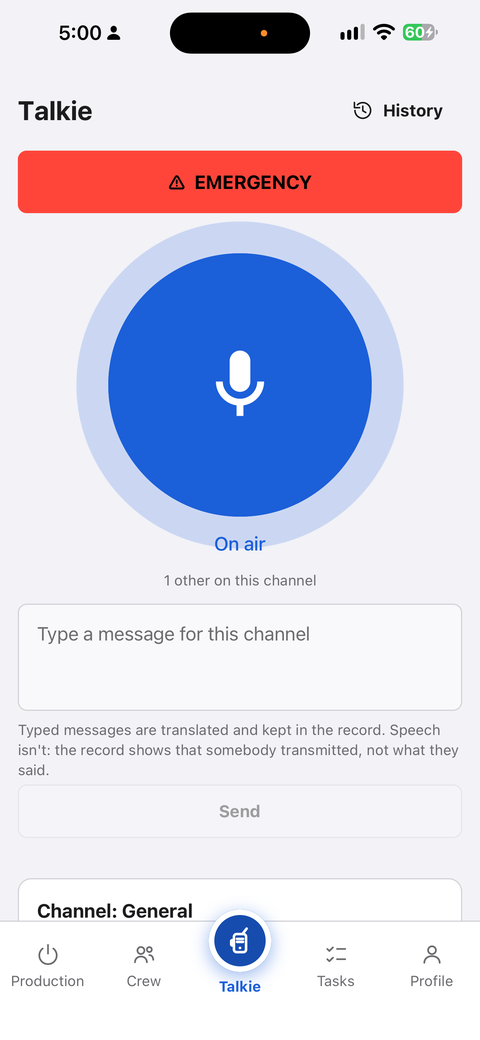
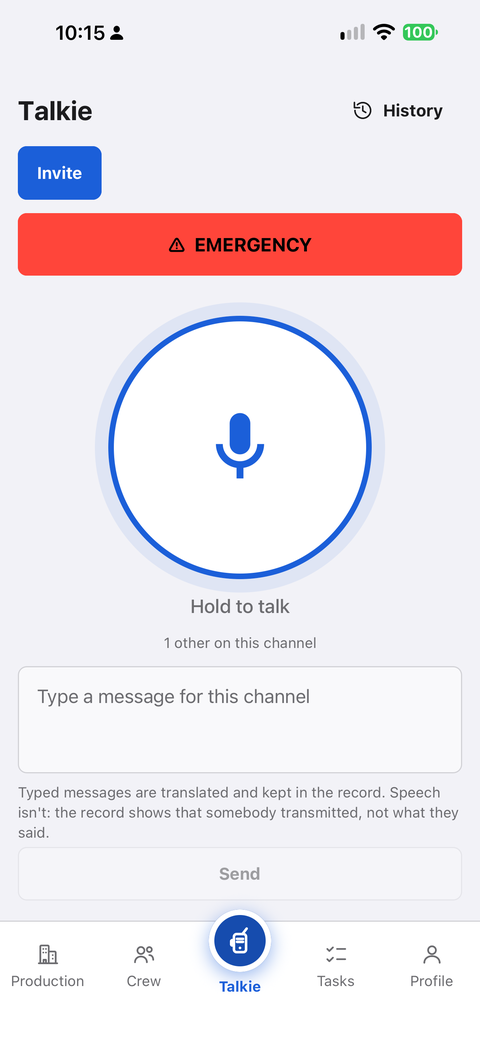
Open the Talkie. Check your channel at the top (Channel: …), hold the big button (Hold to talk) while you speak, and let go to listen.
EMERGENCY
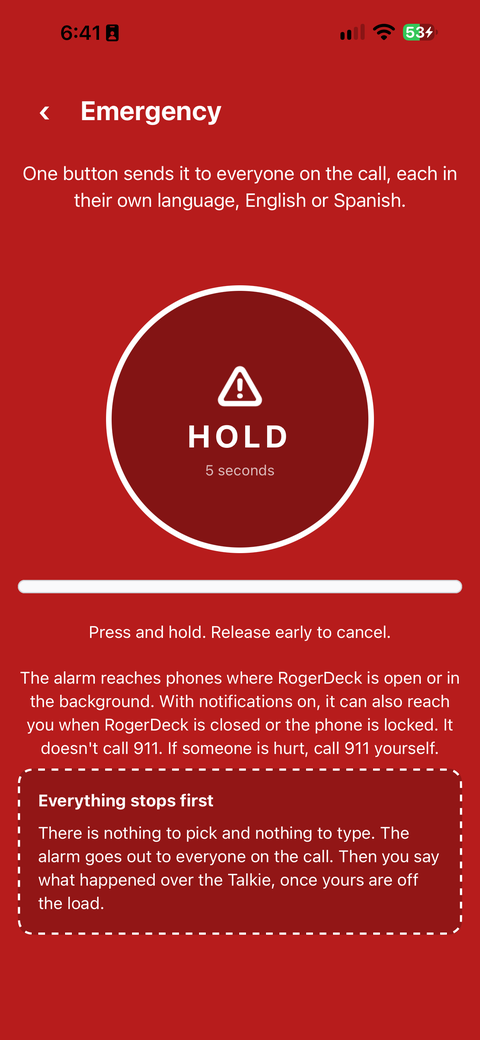
Tap ⚠ EMERGENCY on the Talkie, then hold the big round button for 5 seconds. Let go early and nothing is sent. The alarm goes out to everyone on the call. It does not call 911: if someone is hurt, call 911 yourself.
If you run the day
Crew Chief or company admin: create, invite, check in, close.
Create the production
In the Production tab, tap + New production (if you do not see it, your account cannot create productions). Name it, pick the day (Today, or Several days for the dates), choose the Crew Chief (You, or someone on your crew), and tap Create and invite. Today's day opens by itself.
Invite your people
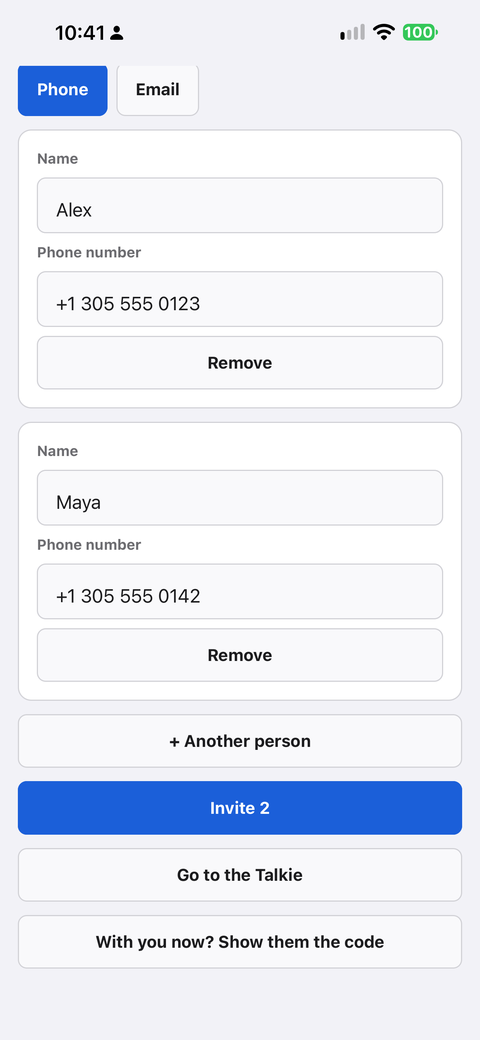
On the Phone tab of the next screen, enter each person's Name and Phone number (US or Puerto Rico numbers; no 800 numbers). Tap + Another person for more, then the Invite button, which shows how many people (for example Invite 2). RogerDeck does not text them for you: tell each person to install the app and sign in with that number. With people next to you, With you now? Show them the code lets them scan the QR. Later, Invite staff (in Floor tools) brings you back to this screen.
Open the day and check people in
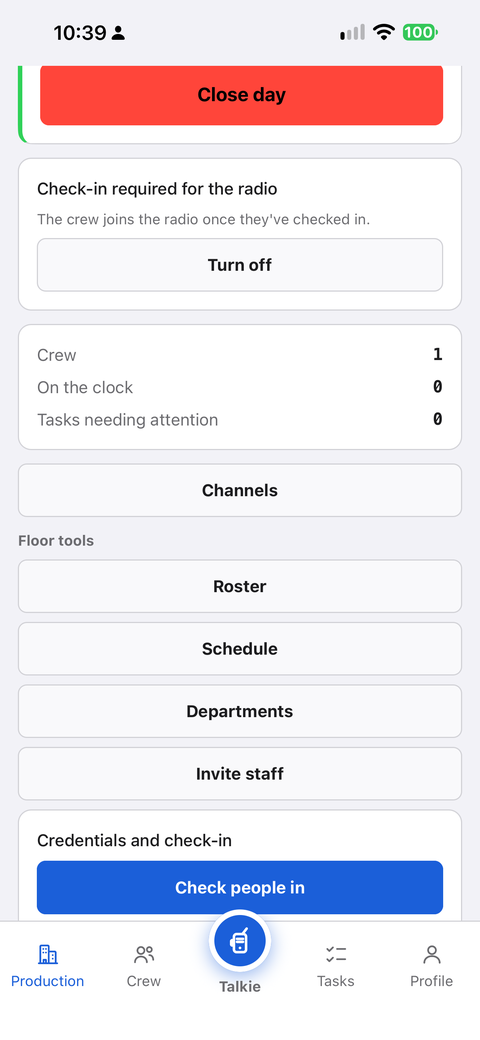
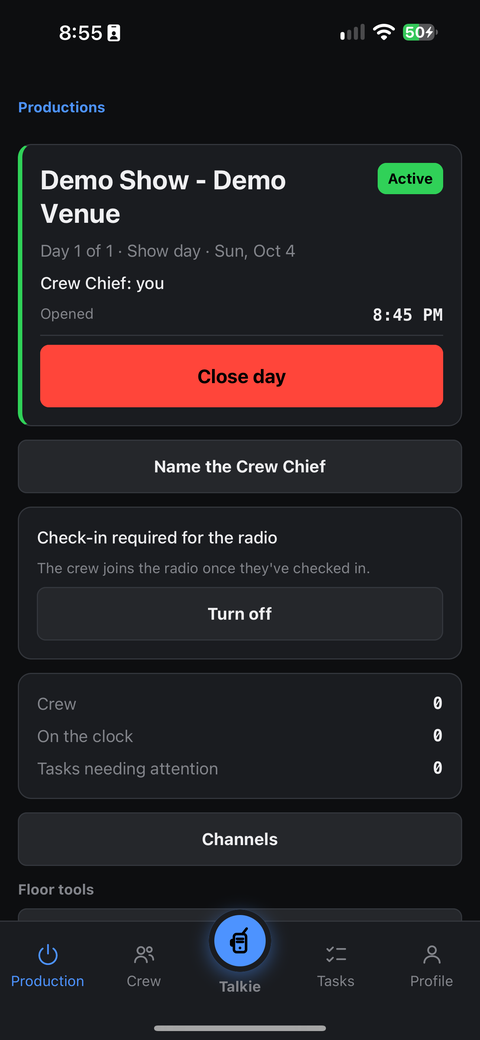
If the day is not open, tap Open day. When the crew arrives, go to Floor tools, then Credentials and check-in, then Check people in, and scan each person's QR. By default, their radio opens as soon as the check-in is recorded. No phone at hand? Check them in by hand on the desk (app.rogerdeck.com): Check in manually.
Close the day
When the work is done, in the Production tab on the day's card, tap Close day and confirm. Closing the day ends the radio and the alerts for the whole crew and stops the hours of anyone still on the clock.
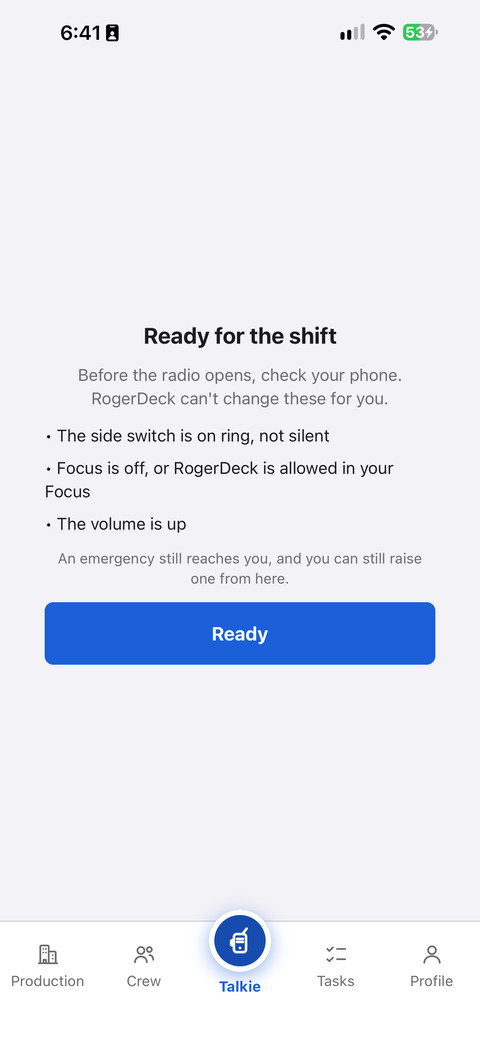
Before the radio opens, Ready for the shift asks you to check your phone. Volume up. iPhone: side switch on ring, and Focus off or allowing RogerDeck. Android: Do Not Disturb off or allowing RogerDeck. RogerDeck cannot change these for you.
Questions? Write to hello@rogerdeck.com. Written for RogerDeck 1.2.0.